Showing posts with label Google Forms. Show all posts

Wednesday, July 18, 2012

Technology Tutorial: Adding Google Apps to your Google Site

This is week 3 in my summer series about building an awesome class website using Google Sites. Be sure to read Week 1 and Week 2 as well!

Part 5: Entering the World of Apps

As I'm sure you've guessed by now, I'm a big fan of Google, and I use Google Apps for everything. I have a gazillion different calendars that I use to track different things. I host almost all of the documents I use through Google Docs (now becoming Google Drive...). I use GMail, Google Reader, the list goes on... So one thing that I particularly like about my Google Site is that I can integrate many of those features into my class website. Today I'll share two examples -- my class calendar and a class form.

The Calendar Tool

One of the class tools that I feature on my website is a class calendar. I record every school event that I know of on this calendar (birthdays, curriculum nights, project due dates, tests, extra curricular practices, etc.). It helps keep me organized and it keeps the parents informed about what's going on. It's also helpful because anytime I make a change to my class calendar, it will automatically update on the website. Here's a preview of what my class calendar looks like on the website:


To get started, you'll need to have a Google Calendar already created. Then, click on the add page button.


You'll get a screen that looks like this. You won't need to change any of the settings.


Once your new page is created, go to Insert and choose Calendar. Find the name of your calendar, and that's it! It will automatically appear on your Google Site!

Google Forms

Adding a Google Form is also easy. First, you'll need to go into Google Drive and create a form. (If you don't know how to create a Google Form, there are lots of great examples and tutorials on the web!) Once your form is created, you can either add a new page to your Google Site like we did for the calendar, or insert the form into an existing page. To insert the form, click Insert > Spreadsheet Form and then choose the form you'd like to add from the list of your Google Forms. Once you're done, hit Save. Your form will now appear on the website as something like this: 
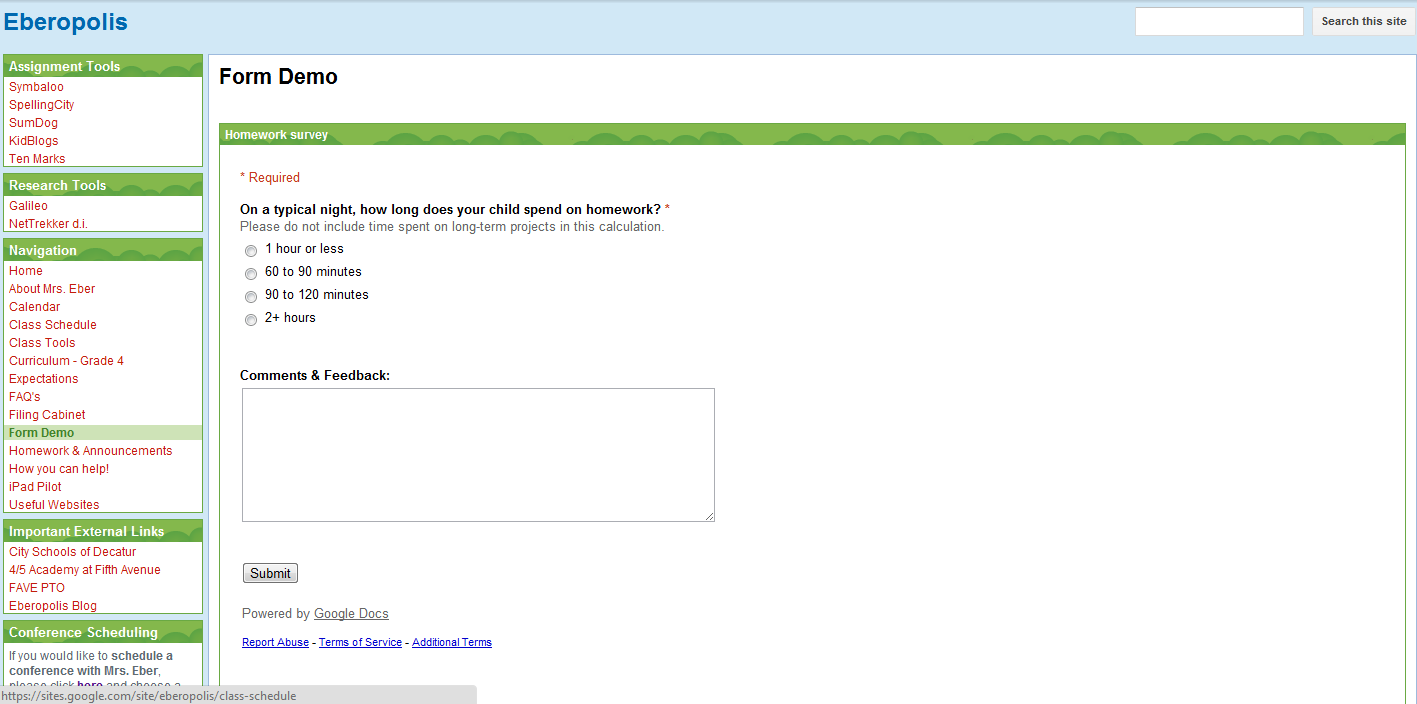


In the past, I've used Google Forms for student and parent surveys, data collecting, quizzes, and more. I'll share some specific examples of these tools in future posts, but I wanted to show you how easy it is to integrate some of the Google Apps into your website as you're building a Google Site.

What are some of the ways you could use calendars or Google Forms in your classroom? Please share your ideas in the comment section!


Saturday, August 13, 2011

iPads + Google Site + Google Forms for the win!

I have a pretty sophisticated Google Site that I've built over the last three years for my classroom, and I use it daily for instruction and parent communication. Many of the activities that I ask my students to do online are connected through this site in some way, so I wanted to make sure that it would be compatible user-friendly with the iPads. Here's a tutorial on how to access such a frequently visited website with students and some of the special features such use could create.

Step 1: Go to the website.
In this instance, my website is located at sites.google.com/site/eberopolis.


Step 2. Click the button immediately to the left of the browser bar, and select "Add to Home Screen."


Step 3. Find the new icon for your webpage as the last icon on your last page of apps.


4. Hold your finger on the icon until the page of icons begins to shake and they have the "x" symbol in the upper left corner of each icon.


5. Drag and drop the website icon into the bar at the bottom of the screen.


6. Press the home button to save your changes and stop the apps from wobbling.


The shortcut will now appear in the bottom row regardless of what page of apps the students are on.

One thing that I love about Google is the ability to create forms through GoogleDocs. I can create assignments that include fill-in-the blank, multiple choice, check box, short answer and long answer type questions. I can make some questions required and other questions optional. I can then link the form to my website, and students can answer the questions and submit their responses to me electronically.
Here's an example of a Google Form that's already linked to my website:

All of their responses are sent to me in a spreadsheet which gets updated in real-time. It's great for quick assessments as well as projects that students have a larger window of time to complete. I also like to use Google Forms for parent surveys on my website.

I tested out my Google Form using the iPad, and it was very easy to use. This will definitely be a tool that I incorporate into future assignments. I'm also thinking that I may design a quick parent survey for curriculum night, and let the parents answer the survey using the iPads.
Related Posts Plugin for WordPress, Blogger...