
- Mission #1: Gather Your Tools
- Mission #2: Build Evernote Notebooks
- Mission #3: Email Notes to Evernote
Also be sure to link up at the Go Paperless! Challenge linky.

Mission #4: Create Checklists in Evernote
I use checklists for everything -- keeping track of who has turned in assignments, what standards I need to teach during the term, etc., and those checklists are great at keeping me organized. But that organizational process breaks down when I start accumulating too many paper checklists. Either I can't find where I put the particular one I'm looking for, or I have to search through so many to figure out the data I'm looking for. It's a mess! But yet again, Evernote is saving the day for me with its checklist features!
In order to make an organized table checklist, you'll need to use the downloaded Desktop version of the Evernote platform. At this time, only the downloaded desktop platform seems to have the Table feature. My images show what it will look like on a Mac version; the PC version might be slightly different.
To make a checklist, create a new note. Then choose the "Table" tool.

You'll have an option about how many rows and columns you want to insert. I recommend limiting yourself to 2 rows -- one as your header and one for the checklist. I think it looks better, and it's a little easier to edit and work with later on.
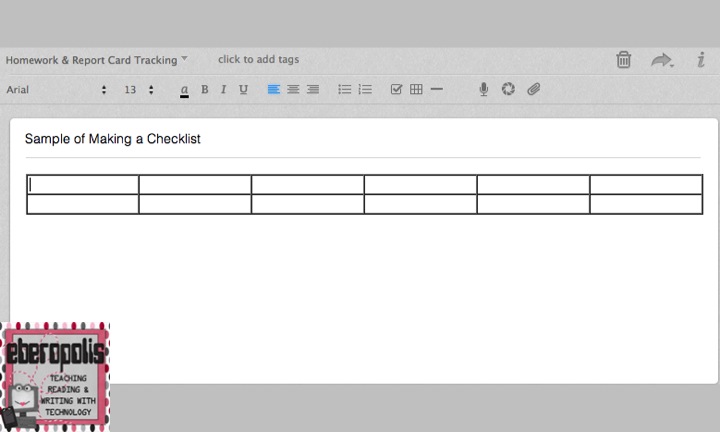
Once you're ready to insert your student's names, choose the "Insert to-do" button (the checkbox) into the second row of your table and begin typing. (Leave the first line for your header). Every time you hit "return/enter," it will automatically insert a new checkbox.

After you've typed your list once, just copy and paste it into the other columns. It will automatically adjust the width to balance the columns

I use this blank list as a template for each time I want to create a new checklist. You have to manually copy and paste the table into a new note -- there's no duplicate note function that I've found on any of the platforms -- but it's still a pretty seamless process. And once I've created the initial checklist through the Desktop version, I can use the checklisted table on any platform (web, iPad, etc.). I can check off boxes and add in text, but I can't add new columns on the non-desktop versions.
You can also create checklists on the web and iPad versions, but without the help of a table, it's much harder to have a multi-column checklist that's easy to read. The multiple columns are really useful for me with tracking information across a grading period. The single column is perfect for things like my to-do list, however.
How I Use This...
I've made a separate "Homework and Report Card Tracking" Notebook on Evernote where I keep all of these checklists. I use this notebook to look at data that I need for my class as a whole -- not just individual students. This is also where I'm starting to keep reports about guided reading levels and other whole class data.
Now, when I need to keep track of assignments that are turned in, forms I've collected, or any other material I'd track, I can just carry around my iPad and check-off the student's name. Tagging each note thoroughly means that I can always easily find the data I'm looking for, so it's been an organizational blessing!
Your Assignment:
Create a tabled checklist with your students' names. Play around with the table and checklist tools and think about how you could use this to streamline your paper use. Have some ideas? Please share them in the comment section. I'd love to hear how you're using this feature because this was a recent discovery for me!
In the next post in this series, we'll start to talk about incorporating DropBox into the mix.


