Sunday, June 2, 2013

Number Talks Chapter 1 - Thumbs Up for the Silent Thumb

I'm linking up with my friend Misty over at Think, Wonder, & Teach for her summer book study of Number Talks: Helping Children Build Mental Math and Computation Strategies, Grades K-5

Given that I'm wrapping up a K-5 Math Endorsement this month, this is a timely book for me. I love to teach math far more than I ever anticipated that I would when I entered this profession, and I really enjoy getting students to share and discuss their mathematical thinking. I've noticed, however, that many students lack strong mental math and computation strategies, relying instead on memorization to get them by. By the time they get to 4th grade, that's not really a viable strategy anymore. They're starting to work with much larger numbers, and they subsequently have more parts and steps to keep straight in their heads. If they don't have great mental math strategies going, then it's likely to become a mess pretty quickly. They can always solve problems on paper, but unless they have the good number sense that goes with doing mental math, they'll never be able to gauge the reasonableness of their answers. In those regards, this book seems like a great idea.

Chapter 1 really just introduces the concept of a number talk, and Misty does a great job summarizing it, so I won't go into that here. One of my favorite teaching ideas from the book so far, however, was the idea of the "Silent Thumb." When students are given a mental math problem, they need some "think time." But every class has 2-3 students who are super math-letes who have the answer before the rest of the class has even processed what problem they're being asked to solve, and those kids with their proud "I know! I've got it!" hand-waving typically end up dominating the conversation. The "silent thumb" solves that problem. All students hold their hand in a fist over their chest as they solve the problem. When they've got an answer, they move their hand from a fist to a "thumbs up." They then think of another strategy to solve it while the other students are thinking, and for each additional strategy they come up with, they extend a finger. Awesome, right? I love how this gives all students some think time without creating pressure for some kids to hurry up because the fist is held close to the body -- not waved in the air for everyone else to see. It also validates those super math-letes for their mathematical thinking by allowing them to communicate to the teacher that they have multiple strategies for solving the problem. And if they don't have multiple strategies, then they have something to think about while the others are working.

I'm definitely interested in learning more about Number Talks, and I'm excited to delve into this book a bit more. I'll be posting more about this book in the weeks to come as I link up with Misty's book study.

If you don't currently have a copy of Number Talks, you can still read the first chapter online. The book is a little bit pricier than most professional development books, but it comes with a DVD full of examples and it has a lot of resources packed in the text. If you're looking to increase students' mental math abilities, then this could be a great resource to use.

Be sure to check out Misty's Number Talks chapter 1 linky party where you can add some ideas of your own or read what other teacher bloggers are saying about the book. I promise you'll find some great ideas there!

And click here to see my review of Chapter 2!


Have you ever done Number Talks in your classroom? I'd love to hear about your experiences in the comments section!

Thanks for reading,

Saturday, June 1, 2013

Currently June (?!)

Oh, how I love to start the month with Farley's Currently over at Oh' Boy Fourth Grade -- especially when I actually remember that it's the start of the month and don't have that revelation about a week in. :)

Here we go...


Listening:  I got to see Sara Bareilles perform at a small Atlanta venue on my birthday a couple of weeks ago, and wow - can she ever sing! She's been in heavy rotation on my playlist ever since.

Loving: The first couple of weeks of summer vacation are always the best because it feels like there's so much free time ahead. A quick glance at my calendar would remind me that this summer is going to fly by very quickly, but for now, I'm thrilled to have a little breathing room before the hustle and bustle of another school year kicks in.

Thinking: Math is on my mind a lot right now. I'm finishing up my final project for my math endorsement (an algebra unit), and I'm joining multiple book studies about math-related books this summer. My students did very well overall on the year-end standardized tests, but I feel like I'm still scrambling to make sense of the best way to teach the Common Core. I need to figure out something that will allow me to differentiate more without creating oodles of additional work on my end. If anyone has the magic solution, please let me know.

Wanting: We bought a new desktop computer last year, and it was intended to be mostly for my school/blogging/TpT use. That worked for a little while, but my husband has slowly taken it over and claimed it as his. He's been working crazy hours (he's an attorney), and his work is often more deadline-oriented than mine, so I've given in. But now that I'm getting ready to start my doctorate, it might be time for us to give up on the idea of sharing a computer. I have a work laptop that I use sometimes, but it's got some crazy restrictions/configurations that limit the programs I can install, etc. For most people, it's not a big deal, but when you're a tech-geek like me, it's frustrating. So last week, I made a big pitch for me to get a new iMac desktop, and he agreed! There were some intense negotiations that went into the process, but in the end, we made a deal that we can both live with. I'm going to be responsible for generating the extra income to make the payments on it (we got it financed over 18 months), but between some tutoring jobs I'm taking and TeachersPayTeachers, I think I'll be able to swing it.

Now I just need to hold on for Monday when my precious new toy will arrive!

Needing: I need to get organized and prioritize what I need to accomplish this summer because there's no world in which I'll have time to tackle my ever-growing to-do list. I need to create some realistic goals with deadlines to keep myself reasonably on-task. I also need to cut out distractions like randomly checking Facebook or email or Twitter every 10 minutes.

3 Vacay Essentials - 1) Shade - I have the misfortune of being allergic to almost every type of sunscreen that exists -- including the ones that say they're hypoallergenic and made for sensitive skin. Put some of that sauce on me and stick me in the sun, and my body breaks out in a terrible, lobster-like swollen rash that is WAY worse than any sunburn I've ever had. So I stick to the shade as much as I can, and I visit my dermatologist every year to make sure that I'm not getting skin cancer. Not fun, I tell you.

2) Books - This used to be a huge ordeal before the advent of the Kindle. I like having lots of summer reading options, ya know?

3) Beverages - Hydration is important! And there's a whole slew of summer drinks that I could put on the list... But seriously, I've been drinking at least 64 oz of water each day of this vacation before I even touch anything else, so I think I'm doing well.

Big thanks to Farley for continuing to host this linky. Every month I find so many amazing blogs and learn lots about my fellow bloggers. If you aren't participating already, you should definitely link up!

,

Have a great June, everyone!

Friday, May 31, 2013

How to Organize your Summer Reading

Summer is the perfect time for me to make some progress on the massive stack of books that I accumulate throughout the year. You know that stack -- and if you're like me, that stack may have spawned offspring and multiplied into several stacks around the house. And given the number of summer book studies I keep reading about, I know the stack will continue to grow. Like last week, when I saw that Misty was going to read Number Talks, and I had to get the book.

Or this morning, when I read that Beth at Thinking of Teaching and Brenda at Primary Inspired are hosting a summer book study of Building Mathematical Comprehension: Using Literacy Strategies to Make Meaning by Laney Simmons. I want to read that, too!


With all that I'm currently reading, want to read, and have finished reading, I needed a way to keep track of all these awesome books. Then I remembered GoodReads (this is very distinct from the GoodReader app that I've blogged about before).

GoodReads is a social media site focused on reading. I first started using it in 2010 after I finished reading The Book Whisperer by Donalyn Miller (if you haven't read this book, it is a must-read).


She referenced the site in the book, and I used it through my computer for quite a while. Eventually, as I got busier, I started using it less. I recently got an email update about a friend who was using it, however, and it reminded me that I should revisit the site. My how GoodReads has improved since I used it last! First, GoodReads has mobile apps now to help you keep your reading interests up-to-date.


Now, I'm not such a bibliophile that I need to give status updates of what I'm reading non-stop. But these mobile apps have a fabulous feature that I love: a scanner. (Here's the view of the app from my iPad. The iPhone version is very similar.)

The scanner allows you to scan the barcode on books and then add it to a virtual shelf. Your GoodReads account has 3 default shelves: read, currently reading, and to-read. Shelves are like tags, and you can create your own shelves based on topics or any other organization you'd like. Books can also be housed on multiple shelves at once.

I love using the scan feature to quickly organize the books that I'm reading or plan to read. Given the iPhone app, it's also a dangerous helpful feature when I go to bookstores and see books that I'd like to read someday. I just scan them in, and it pulls all sorts of data for me about reviews of the book, average rating of the book, page count, etc. For eBooks I've purchased that don't have a scannable barcode, I can also search by title or author.

In addition to using this to manage my summer reading, I expect to use this app more in my classroom library to inventory my collection, identify books that I've read or want to read, write recommendations for my students, and so on.

If you decide to give GoodReads a try, feel free to connect with me there. I'd love to connect with other teachers to see what others are reading.

What are some books that you're planning to read this summer? Any other ideas for ways to use this app? I'd love to hear your ideas in the comments section, and I hope to connect with you on GoodReads!

Happy summer reading!

Wednesday, May 29, 2013

Thinking about Next Year

Today was the last official day of post-planning, and for the first time in the history of my teaching career, I finished cleaning out my classroom and wrapping up my paperwork on time -- no extra days required this year! Granted, there was some definite "Oh, I'll just shove this in this cupboard and deal with it in July" happening around 5pm today, but nevertheless - I'm done!

The cleaning process was prime opportunity for me to think about what I want to do differently next year, and I'm excited to be linking up with Finding JOY in 6th Grade for her "What Will You Do Differently?" Linky. Here's what I came up with:

As you may have read in my Go Paperless Challenge series, I'm very committed to going paperless in my classroom. I had a great test-run during the last 6 weeks of school where I got to experiment and figure out what works and what doesn't. I'll be sharing many of those lessons here over the summer, but I'm DEFINITELY planning to go paperless. It made such a difference in my organization, efficiency, and productivity, and I MUST keep it going next year!


As we were cleaning out the classroom during the last week of school, I realized how much storage space was being occupied by notebooks, folders, and papers that my students won't need next year in a world where we're paperless. I'll be giving lots of thought to how I can better use the newly-available spaces next year. My initial thought is to put out more math materials for students to access routinely.

I did the book study for Guided Math last summer, and I worked on my math endorsement this year. I feel like I've been working very hard on math, but I'm still not quite getting the results that I want. I want to revamp my math instruction again next year to do more of a workshop approach with guided math groups and more individualized tasks and problem solving. Now that I have a better understanding of the Common Core State Standards for math with a year of teaching them under my belt, I feel ready to take the next step.

What are you going to change for next year? Feel free to leave me a comment, and definitely link up with Finding JOY in 6th!

joyin6th Homepage

Monday, May 27, 2013

How I Decluttered my Inbox

I try out new apps constantly, but it is rare that I find one that I consider a game-changer -- one that revolutionizes how I do something and boosts my productivity.

Meet Mailbox.


Mailbox works with iOS mobile devices (iPhones, iPads) and GMail, and it can handle multiple GMail accounts. The idea is that your email box should always have ZERO messages in it, and it helps you achieve that goal by giving you four options for each message in your inbox.

Big-swipe to the left: Add to list


So many of the emails that I receive are ones that I don't need to respond to immediately, and Mailbox understands that by allowing you to file messages as low-priority action items. It has three main lists:
  • To Read -- great for newsletters and other items you're interested in reading at some point but not necessarily the second that it arrives in your inbox
  • To Watch -- my husband and some friends will sometimes send me YouTube videos that I can't watch at work -- not because they're NSFW, but because YouTube is categorically blocked at my school. These videos also tend to be low-priority items.
  • To Do -- emails of things to add to my "to do" list
It also gives you the option of creating additional lists. I made the "To Buy" list, for example, for items like subscription services that are going to expire sometime soon that I need to renew or for wishlist items that I'm thinking about buying someday. 

Short swipe to the left: Defer
Sometimes I receive messages that I want to deal with, but not at the time I've received it. When I'm using my iPhone, for example, I rarely respond to email because I prefer typing on my laptop. Some emails are ones that I'll look at more closely at night or over the weekend when I have more time. Other emails are ones that I want to deal with at a specific future time or date. Consider these examples:
  • a coupon for a clothing store that I might use but is only valid for a certain week in the future
  • a confirmation email for an upcoming trip or conference
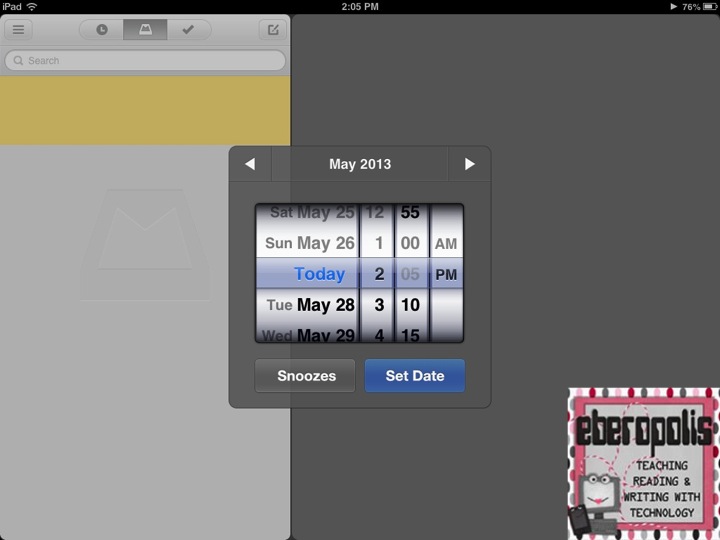
The beauty of the Mailbox app is that you can set the exact date and time when you want that message to reappear in your inbox by letting you "Pick Date."

The message will reappear in your inbox at the date/time you specify so it can get your attention rather than just getting pushed to the depths of your inbox to be forgotten.

Short swipe to the right: Archive the message
I might want to look for it someday, but it's not something I need to act on.

Long swipe to the right: Trash the message

Mailbox is a free app in the iTunes store, and in the three weeks that I've had it, it has replaced the default Mail app on my iPhone and completely changed the way that I manage email. I've gone from having literally 1,000s of emails in my inbox to having ZERO. It's the first time I've ever felt like I've been on top of my email situation.

The iPad version just came out this week, and I'm using that a lot, too. It has a larger interface, but all of the same features. Here's a screenshot of it on my iPad:
You can see that I have one message in my inbox -- a coupon that I have to use this weekend if I'm going to use it at all. I've deferred 14 messages -- some that I'll reply to on Tuesday, others that I want to deal with once I'm completely done with school on Thursday. I've got some lists, but I can also check the archive or the trash in case I accidentally swipe something into the wrong place and want to move it back out.

If you click on a message in your inbox, an image of it will appear on the right so you can decide what to do with it. It's a very easy-to-use and intuitive app, and now that I have it, I can't imagine giving it up. It's a huge asset to my productivity, and my only wish is that I could use this with other email platforms -- like my school/work emails -- that aren't GMail accounts.

Have you tried Mailbox yet? I'd love to hear about how you manage email productivity in the comments below.

Hope you're having a great Memorial Day weekend!

Tuesday, May 14, 2013

Paperless Mission #9: Setting Up Your Class with Evernote

This is the ninth installment in my Go Paperless! Challenge Series. You can check out the other entries in the series here. Also be sure to link up with my Paperless Challenge Linky!


Mission #9: Set Up Your Class with Evernote

Today's mission assumes that your class has easy access to technology. I teach in a 1:1 iPad setting, but I realize how blessed I am to have this and how few people -- especially at the elementary level -- get to do this. For those of you who have less access to classroom technology, I'm including modifications that you'll be able to use at the end of the article.


It's been a couple months since I started drinking the Evernote Kool-Aid, and I'm still loving it. I don't have to worry about losing papers or information, and it has become my repository for just about everything. For the first time in my professional live, I feel like I'm getting a handle on organization. But then I see this:


And I'm reminded that just because I'm organized, doesn't mean that my students are. In fact, all year long my fourth graders have been struggling with keeping track of class notes, transporting work between home and school, and remembering what materials to use to study for tests and quizzes. Part of that unquestionably comes with the age and maturity levels of 10-year-olds, but given how awesome technology has become, I knew there had to be a better way.

Enter student Evernote accounts. My students used Evernote on their iPads for the last 6 weeks of school, and I've been very pleased with the results. Here's how we set it up.

Step #1: Register for new Evernote accounts.

This step can be done on either a computer or an iPad. (My pics will show the iPad view.) Students will need to have an email address in order to complete registration, but this can be tricky with students who are under the age of 13 since many of the students don't have email yet. One work around that we found was to set up a class email address on Gmail (ex: fakeeberopolis@gmail.com). Then, you can add the "+"symbol to the end of the username along with a string of letters and/or numbers before the "@gmail.com" ending. Evernote thinks all of these are different addresses, but Gmail doesn't pay attention to anything after the "+" symbol, so everything will go back to the "fakeeberopolis" account. This lets students register without ever giving them an email address.


I had students put their lunch account numbers after the plus symbol, but names or other number combinations would work too. You just have to have the info after the "+" symbol be unique to each student so Evernote doesn't think they've already registered. 

I let the students choose their own usernames and passwords, and I had them record those in a safe place so they could share them with parents. Next year, I'm likely to collect the information as well so I can easily help the students recover it. They don't sign in and out of Evernote usually -- they just stay logged in, so many of them forget.

Step #2: Build Notebooks for the Subject Areas

My students created notebooks for Reading, Writing, Word Study, Math, Science, and Social Studies. They later added notebooks for their Spanish and Music classes. During the set-up phase, we talked about the differences between notebooks and notes and how to move notes from one notebook to another. Next year, when I start this from the beginning of the year, we'll also talk a lot about tagging notes to make them easier to find.
 

Why Student Evernote Notebooks Rock

1. More instructional time because transitions are so easy. Transitions between subjects used to take us forever because students would forget to grab a notebook or not have all the materials ready on time. Now transitions are just a quick stretch or brain break. They have all of their notes right in front of them already. We're abandoning the cluttered bins and drawers.

2. Students are more accountable and prepared. We don't have to worry about forgetting work at home or getting lost between home and school. It's all in one place. In addition, students are able to create more comprehensive class notes. If we read an article using GoodReader, students can save it to their Evernote notebook. If we develop an anchor chart as a class, students can take a picture of it and add it to their notes to refer back to long after it's gone from the classroom display. If they make a model of different types of triangles using toothpicks, they can photograph their work and add in captions later. More learning gets archived than we'd ever accomplish with a paper model.

3. Everything is portable between home and school. Students don't get to take their iPads home, but as long as they save their work in Evernote, they can access it from any computer or mobile device. It also means that students aren't leaving important readings or materials at school when they need to study for a test. I've had many frustrated parents complain that their child wasn't bringing home the right materials to review for tests this year -- especially because we don't use traditional textbooks at my school -- and this remedies all of that.

Another portability example is that I've also had students use Evernote as a word processor when they're working on longer writing assignments because they can pick up their work between home and school. (In the future, I'd like to use Google Drive as their word processor, but until we get there as a school, this is an acceptable alternative.) Once students are ready to turn in a finished piece of writing, they copy and paste it into Pages, clean up the formatting, and turn it in through Edmodo. It has worked brilliantly this term, and I'm seeing much longer, more developed pieces of writing at all stages of the writing process now. I really think the ease of this process has played a role.

Now that we're using Evernote regularly in the classroom, I can't imagine ever going back. While I will miss the massive influx of office supplies (composition books, notebooks, etc) at the start of the next school year, I'm falling in love with the fact that the only things I take home with me each night are my laptop and iPad. Going paperless has been a glorious thing.

What are some ways you could use Evernote with your students? I'd love to hear about it in the comments section!

Tuesday, May 7, 2013

Paperless Mission #8: Conduct and Archive Running Records (iPad)

This is the eighth installment in my Go Paperless! Challenge series. You can see the other entries in the series here. Also be sure to link up with my Paperless Challenge Linky!

Mission #8: Conduct and Archive Running Records 

At least once each six-week term, teachers at my school are supposed to conduct a running record as a guided reading level assessment. We use the Fiction Level Reading Assessments provided by the Teacher's College Reading and Writing Project, and before my move to paperless, this system was a mess for me. I'd have one binder that was all the student copies of texts, and then I'd have a huge paper pile of blank assessments that I could fill in as I worked with students. Invariably, I'd have a ton of kids reading on level S, for example, and I'd run out of my copies of that assessment, so it was back to the copier to make more. Then I'd have to deal with recording the data and filing them all, and it was a bit of a nightmare.

Paperless rocks. The nightmare is over.

In this tutorial, I'll share how I'm using Dropbox, GoodReader, and Evernote to conduct running records anytime and anywhere on my iPad. You might want to get a good iPad stylus, too, if you like that "pen in hand" feel.

Step 1. Download all of the running records to a folder on Dropbox.


You will also want to print one student copy of each assessment. I still keep all of those in page protectors in a binder so I can hand one over for the student to read off of, but I never make copies of these. It's a one-time paper expense that I'm happy to live with.


Step 2. Import the guided reading assessments into your GoodReader app.

Once you're done saving them to Dropbox, open up GoodReader and connect to DropBox. There's more information about this in the previous GoodReader tutorial, Mission #6.


Step 3. Choose the appropriate level, and open up the teacher copy in GoodReader.

The first time that you want to annotate the document, you'll be prompted to "Create an Annotated Copy" or "Save to This File." You will want to choose "Create an Annotated Copy" so you don't lose your blank copy. Otherwise, you'll have to download these files every time you want to use them, and that's only marginally better than running to the copy room -- trust me.


Step 4. Use the annotation tools to mark up student reading as you normally would. 

I won't lie -- the first couple times I did this, it felt a little awkward. You have to remember to save the document if you're switching between tools or trying to scroll/resize. But it does get better quickly, I promise! The more you use the tools, the more fluid your movements will be. It didn't take me long to get back to the level of proficiency I had with paper copies, and while my writing is a little messier on the iPad, it definitely gets the job done.


Step 5. Rename the file using the manage files option on the home screen of GoodReader. 

To get back to the home screen, tap the center of your screen -- away from any annotations -- and it should show you the main menu or "My Documents" up at the top left.


Step 6. Move the renamed running record over to the student's notebook in Evernote.

To get there, go into Manage Files again, and then select Open in. . . 


You'll be prompted to flatten annotations. Make sure you choose this or your annotations may be lost. 


Select Evernote, and it will launch your Evernote app. From there, you can move it into the appropriate notebook and type in any notes that you want to remember about the student's reading.


Extra Credit: Create a simultaneous audio file in Evernote.

This is something that I've been playing around with lately, and I think the possibilities for this are amazing. Once I have everything set up so that my student has the student copy of the text and I have the right running record file open in GoodReader, I go into Evernote, open a new note, and start an audio recording using the microphone icon. I tell the student to start, and then I use 4 fingers to swipe quickly from right to left across my iPad. This takes me back to GoodReader (or whatever my last open app was) without having to go through my home screen. When the student finishes, I use the 4-finger swipe in the opposite direction to pause the recording.


In the end, I have an .mp4 audio file of the student reading in addition to my annotations on the running record. This is great because it's evidence I can use in RTI and parent-teacher conferences, and it also enables me to play back the audio so the student can hear him or herself read -- something that rarely happens. We can then talk about patterns I'm noticing and ways to improve reading fluency. It's a great teaching tool.

Your assignment: Try doing a few running records on your iPad and leave me a comment about how it's going. I'd love to hear other ideas or suggestions to fine-tune this process, too. I've only been doing it for about 6 weeks, so I know there are things that could be improved. Hopefully this is enough information to get you started, though!

Thanks for reading!
Related Posts Plugin for WordPress, Blogger...